
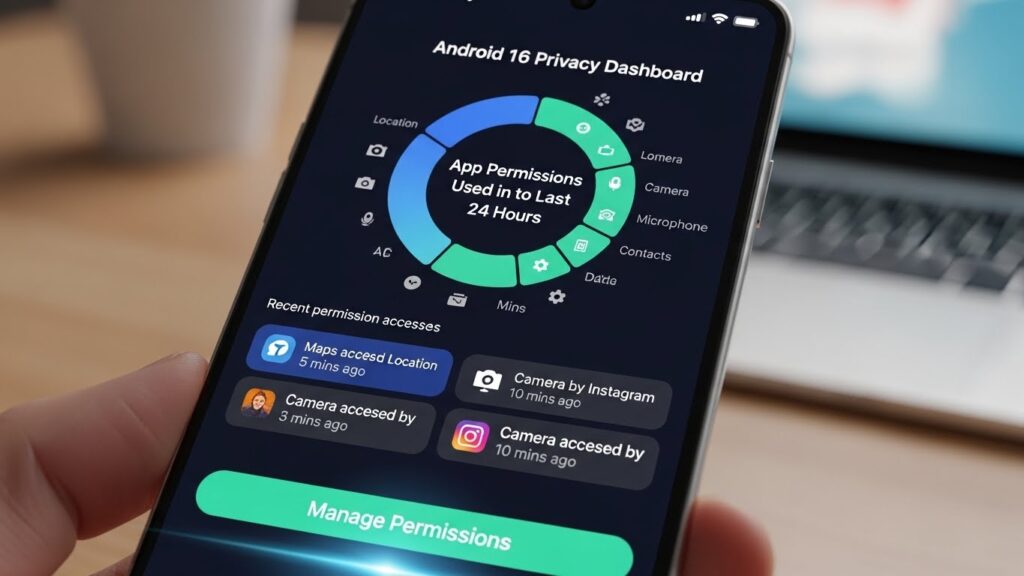
Understanding the Android 16 Privacy Dashboard
The privacy dashboard centralises privacy controls that were previously scattered across multiple settings menus.
What the Privacy Dashboard Shows
Navigate to Settings > Privacy > Privacy Dashboard. The interface displays recent app access to sensitive sensors and data sources. You see which apps accessed your microphone in the past 24 hours, which apps used your camera, and which apps accessed your location. The display is clean and understandable—specifically, which app accessed the sensor, when, and how many times.
The Android 16 privacy dashboard includes a new neural core monitoring feature showing which apps executed AI workloads using your device’s neural processor. For instance, if you use Google Photos’ AI Magic Eraser, the dashboard shows “Google Photos accessed your neural core at 14:35 for image processing.” This transparency is valuable for understanding which apps leverage AI.
Historical Tracking
The dashboard provides historical data spanning the past 24 hours, 7 days, and 30 days. Switching between timeframes allows reviewing access patterns over longer periods. For instance, if you suspect an app is continuously using your microphone in the background, the 30-day view reveals this pattern immediately.
Permissions Management
From the privacy dashboard, you can revoke permissions directly. Tapping on an app shows detailed information about which permissions it has, when it last used each permission, and options to revoke access entirely or limit access to “Only While Using the App”. This is faster than navigating through the traditional Settings > Apps & notifications > App permissions interface.
Neural Core Monitoring — The New 2026 Privacy Feature
The Android 16 privacy dashboard’s neural core monitoring is the most significant privacy addition in 2026.
How Neural Core Monitoring Works
The Snapdragon 8 Gen 5’s neural processing unit includes permission-tracking hardware. When an app executes AI workloads using the neural core, the system logs the access. Unlike traditional permission tracking (which sometimes works inconsistently), neural core logging is built into the hardware, providing accurate records.
The privacy dashboard aggregates these logs, showing which apps used the neural core, when, and approximately how many operations were executed. The operation count helps you understand whether an app briefly used the neural core for a single task (like processing one photo) or continuously runs AI workloads in the background.
Practical Examples
When you use Google Pixel feature drop January 2026’s new AI Magic Eraser on a video, the privacy dashboard shows “Google Photos accessed your neural core at 14:22 for 15 seconds, executing approximately 45 billion AI operations”. This lets you know the operation completed successfully and didn’t mysteriously continue running in the background.
Conversely, if you notice “Google Assistant accessed your neural core at 03:47 (in the middle of the night) for 12 minutes, executing approximately 500 billion AI operations”, this reveals suspicious background activity that might justify disabling the feature.
Limitations of Neural Core Monitoring
Neural core monitoring doesn’t reveal what data the neural core processes. It doesn’t show whether AI processing involved your photos, your voice, your location, or generic data. Additionally, it doesn’t reveal whether cloud-based processing occurred simultaneously with on-device processing. Google’s Android system intelligence update 2026 often combines local and cloud-based processing, and the dashboard only shows local neural core usage.
Privacy Controls Beyond the Dashboard
The privacy dashboard is useful but has significant limitations. Additional controls and awareness are necessary for comprehensive privacy protection.

Revoking Individual App Permissions
The dashboard allows granular permission revocation. For each app, you can deny specific permissions. For instance, you can allow Facebook access to your camera (necessary for video calls) whilst denying location access and microphone access (unnecessary for Facebook’s core functionality).
However, some apps refuse to function if denied certain permissions, even if those permissions aren’t strictly necessary. Testing app functionality after revoking permissions helps identify which permissions are genuinely required versus which are opportunistic.
Using Work Profile for App Sandboxing
Android 16 work profile setup guide is often overlooked, but work profiles provide robust privacy protection. A work profile is essentially a second user environment on your phone. You can install privacy-risky apps in the work profile, isolating them from your personal data.
For instance, you could install a social media app in the work profile, allowing it access to the internet, microphone, and camera within the profile, but isolating it from your personal photos, contacts, and location data. This limits damage if the app is malicious or excessively invasive.
Android 16 Bluetooth LE Audio Latency and Microphone Privacy
Bluetooth LE Audio is designed for efficiency but exposes a potential privacy issue. The protocol enables background audio transmission with minimal latency. Theoretically, an app could continuously stream audio via Bluetooth to a remote server without an obvious indication.
The Android 16 privacy dashboard attempts to flag suspicious Bluetooth usage, but the implementation is imperfect. Manually reviewing Bluetooth access in the dashboard is prudent if you’re concerned about audio privacy.
Identifying and Mitigating Privacy Risks
Understanding how to interpret privacy dashboard data helps you identify problematic apps.
Suspicious Microphone Usage Patterns
Normal microphone access happens when you’re on phone calls, using voice chat apps, or actively using voice input. Suspicious patterns include:
- Microphone access at night when you’re not using your phone.
- Microphone access from apps that don’t obviously need audio (like a note-taking app).
- Extremely frequent microphone access spanning long durations.
If you observe these patterns, revoke microphone permissions and monitor whether the app’s functionality suffers. If it works fine without microphone access, the app was using the microphone opportunistically and doesn’t require it.

Suspicious Location Tracking Patterns
Location access is necessary for maps, ride-sharing apps, and fitness trackers. Suspicious patterns include:
- Continuous location tracking from social media apps.
- Location access from utility apps (calculator, weather apps) that could use approximate location instead of precise GPS.
- Frequent location access from apps you haven’t actively used recently.
For each suspicious app, change location permission from “Always” to “Only While Using the App”. This prevents background location tracking.
Suspicious Neural Core Activity
Suspicious neural core usage is harder to identify without technical knowledge, but patterns to watch for:
- Continuous neural core access spanning hours, suggesting the app is training a model or performing repeated processing.
- Neural core access from apps that don’t obviously employ AI (like basic utility apps).
- Neural core access during night hours or when you’re not actively using your phone.
If you observe suspicious neural core usage, disabling AI features for that specific app (if available) or revoking neural core access is prudent. Note that preventing neural core access requires advanced settings not available in the standard privacy dashboard.
Aggregated Data Collection — The Dashboard’s Biggest Blind Spot
The privacy dashboard shows per-app data access but obscures a critical reality: Google also collects aggregated, anonymised data across millions of users.
What Aggregated Data Collection Means
When you use Google services, your behaviour patterns are aggregated with millions of other users’ patterns to improve Google’s services. Your individual identity is theoretically removed, but aggregated patterns reveal insights about human behaviour that Google monetises through advertising.
For instance, Google analyzes location patterns across millions of users to determine popular routes, identify traffic patterns, and understand urban movement. This aggregated data is valuable to advertisers, city planners, and traffic authorities, but it’s derived from your location data.
Privacy Dashboard’s Transparency Gap
The privacy dashboard shows that Google collected your location data, but it doesn’t show how that data contributes to aggregated datasets. This is a meaningful transparency gap—you can see the individual data collection, but not the cumulative privacy impact.
Opting Out of Aggregated Collection
Opting out of aggregated data collection is possible but obscure. Navigate to Settings > Google > Manage your Google Account > Data & privacy. Under “Web & App Activity”, disable “Include Chrome history and activity from sites, apps, and devices that use Google services”. This reduces (but doesn’t eliminate) aggregated data collection.
Simultaneously, disable “Personalised ads” under Ads & personalisation, though this doesn’t stop data collection—it merely prevents using collected data for personalisation.
Comparing Android 16’s Privacy Dashboard to Competitors
How does Android 16’s privacy protection compare to other operating systems?
iOS 18 Privacy Controls
Apple’s iOS 18 provides transparency for app tracking similar to Android 16’s privacy dashboard. iOS historically emphasized privacy more than Android, implementing stricter background process limitations. However, iOS also collects telemetry data through iCloud, introducing privacy trade-offs similar to Android.
Samsung One UI 8.0 Privacy
Samsung One UI 8.0 Privacy Dashboard is essentially identical to Android 16’s implementation, as Samsung layers atop Google’s privacy framework. However, Samsung additionally collects data through its own services (Samsung account, Samsung Health, Samsung SmartThings). For privacy-conscious users, Samsung’s additional data collection is a concern.
Xiaomi HyperOS 2.0 Privacy
Xiaomi HyperOS 2.0 global rollout includes privacy controls, but transparency about Xiaomi’s own data collection is limited. Xiaomi collects substantial user data through its services, and a clear disclosure of what data is collected and how it’s used is lacking.
Practical Privacy Recommendations
Beyond understanding the privacy dashboard, actionable recommendations improve privacy.
Regular Privacy Audits
Periodically review the privacy dashboard (monthly or quarterly). Check for unexpected apps accessing sensors or processing using your neural core. Revoke permissions for apps accessing sensors unnecessarily.
Disable Location History
Location history is among the most invasive data collection mechanisms. Unless you specifically benefit from Google Location Timeline (viewing your historical movement patterns), disable it entirely. Navigate to Settings > Google > Manage your Google Account > Data & privacy > Location History and toggle it off.
Disable Web & App Activity
Web & App Activity tracks all your searches and app usage. For privacy, disabling this is ideal, though it reduces Google’s ability to personalise services. Navigate to Settings > Google > Manage your Google Account > Services you use > Search, Assistant & Voice and disable Web & App Activity.
Use Work Profile for Risky Apps
Install privacy-invasive apps (social media, dating apps) in a work profile, isolating them from personal data. This is more effective than permission management because it prevents the app from accessing your data even if it somehow gains elevated privileges.
Consider Custom ROMs for Maximal Privacy
For advanced users, custom ROMs for Android 16 devices 2026 can provide enhanced privacy by removing Google services entirely or replacing them with open-source alternatives. However, this sacrifices convenience and Google’s services integration, making it impractical for most users.
Conclusion
The Android 16 privacy dashboard represents a meaningful step toward transparency, allowing you to see which apps access your sensors and, for the first time, which apps use your neural core for AI processing. However, the dashboard has significant limitations—it doesn’t reveal what data is processed, doesn’t show cloud-based processing, and doesn’t address Google’s aggregated data collection across millions of users. Effectively protecting your privacy requires going beyond the dashboard, using granular permission management, work profiles, and disabling specific data collection mechanisms entirely. Regular privacy audits using the dashboard help identify problematic apps, and revoking unnecessary permissions improves privacy without sacrificing essential functionality. Recognise that perfect privacy on a connected device is impossible—the trade-off is between convenience and privacy, and the Android 16 privacy dashboard helps you make informed decisions about where that balance lies.
FAQs
Q1: Does the Android 16 privacy dashboard show all data collection, or only app-level access?
A1: Primarily app-level access. The dashboard shows when apps access microphones, cameras, and location. It also shows neural core usage for AI processing. However, it doesn’t show cloud-based data transmission or aggregated data collection by Google itself. Additionally, it doesn’t show precise data—only that an app accessed a sensor, not what data flowed.
Q2: Can I prevent apps from accessing the neural core?
A2: Not without advanced methods. The privacy dashboard shows neural core access but doesn’t provide a direct toggle to deny neural core access to specific apps. Disabling AI features for individual apps (if available in app settings) is the practical approach. Advanced users can use ADB to revoke neural processor access, but this requires technical expertise.
Q3: Does disabling “Web & App Activity” improve privacy significantly?
A3: Yes, substantially. Disabling Web & App Activity stops Google from tracking your search history and app usage for personalisation. However, Google still collects some telemetry for basic service operation. Complete privacy requires more aggressive measures like using custom ROMs or switching to alternative services.
Q4: Is using a Work Profile as private as using a separate phone?
A4: Not entirely. A work profile is isolated from your personal data, but the same device’s owner (and potentially the device administrator) can access work profile data. Additionally, the device’s operating system and hardware are shared, so a malicious app could theoretically exploit shared components. For maximum isolation, a separate device is superior, but work profiles provide practical privacy improvement for most users.
Q5: Should I worry about my neural core being used to train AI models without consent?
A5: Not necessarily. On-device processing means data doesn’t leave your device for training purposes. Google’s servers can receive results of neural processing (like photo metadata after AI erasing) but not the raw data. However, your usage patterns (frequency of AI usage, types of processing you use) are tracked and may inform Google’s service improvements. This is a privacy consideration, but not as invasive as raw data collection.